Settings Guide
This page describes the settings available in the AGENTIC STAR marketplace edition admin console.
Accessing the Admin Console
After deployment completes, open the admin console URL in your browser and sign in using the administrator email and password you provided at purchase.
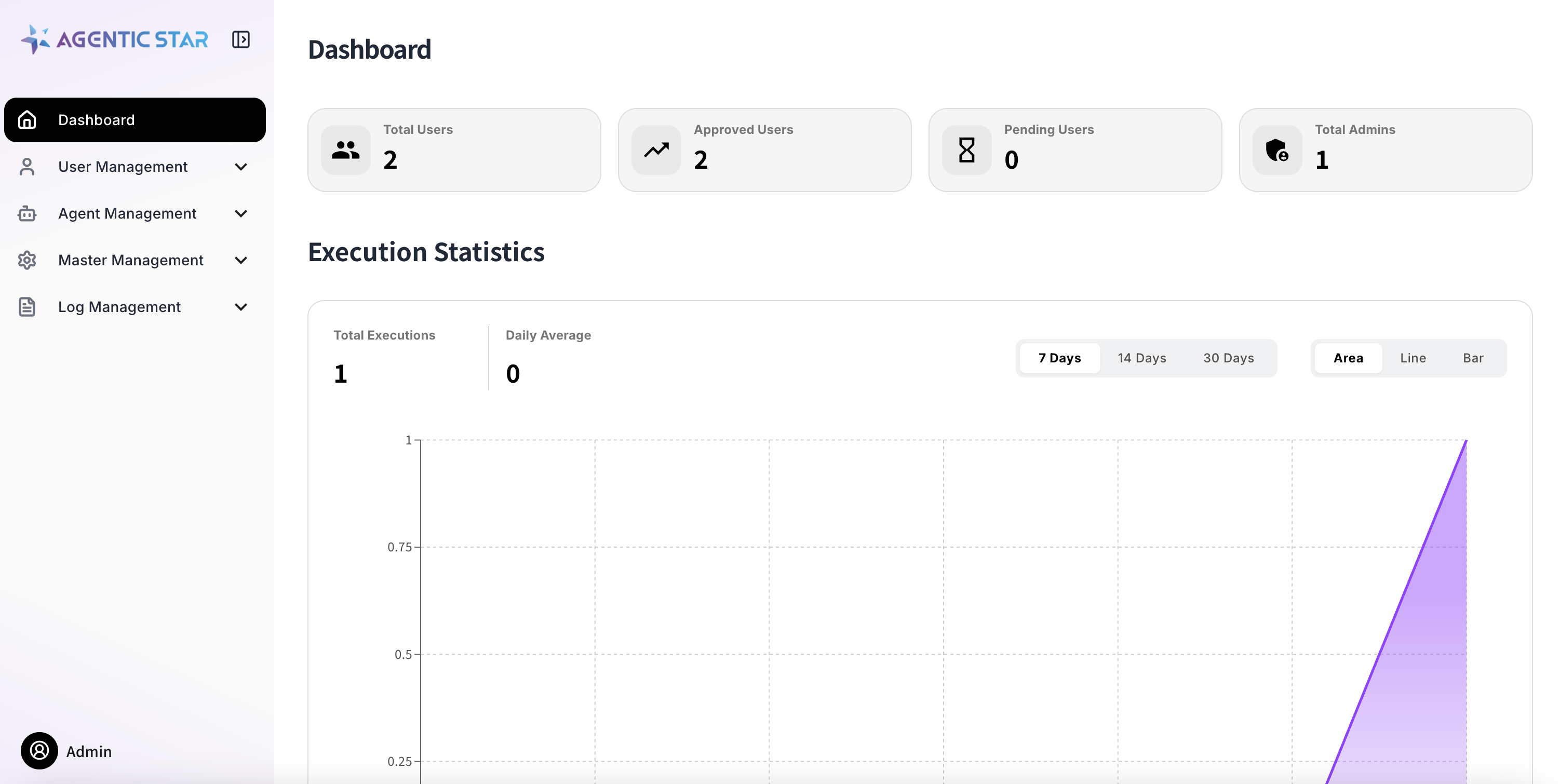
A self-signed certificate is shipped by default, so your browser will show a certificate warning. Allow the exception to proceed. To configure a proper SSL certificate, see the Domain Configuration Guide.
Menu Structure
The admin console is organized as follows:
| Category | Menu | Description |
|---|---|---|
| — | Dashboard | Overview of usage and system resources |
| Users and Organizations | Users > the “Users” tab | Manage end users |
| Users > the “Admins” tab | Manage admins who can access the admin console | |
| Restrictions for violations | List of users and IP addresses whose use is restricted | |
| Service Accounts | Manage service accounts for API use | |
| Organizations and Job Types > the “Organizations” tab | Manage organization information | |
| Organizations and Job Types > the “Job Types” tab | Manage the job-type master | |
| Admin Roles | Assign roles such as organization administrator | |
| Ownership handover | Hand over projects and agents whose owner has left or been disabled (system administrators only) | |
| Sign-in and Access Sources | Sign-in | Whether self sign-up and password reset are allowed, and how long a login lasts |
| External Auth | SSO with your identity provider | |
| Allowed IPs | The IP addresses that may reach the admin console and the chat | |
| AI Agents | Agent inventory | List of registered agents, where they are placed, and their latest runs |
| Generation Model Connections | Configure LLM providers and models | |
| Marketplace AI Agents | Register and manage custom agents. The contract and certification used in project workflows are also registered here | |
| Connections and Usage Scope | MCP Servers > the “MCP Servers” tab | Manage MCP servers |
| MCP Servers > the “MCP Connections” tab | List of the connections users and projects made to MCP server providers | |
| A2A Agents | Manage the external A2A agents you integrate with | |
| Feature permissions | Who can use each feature (“Everyone”, “Selected organizations and job types” or “Not allowed”), and the switch that stops all shared links | |
| AI Agent Restrictions | Guardrails Settings | Content Safety and PII masking |
| Banned URL | Manage URLs that agents are not allowed to access | |
| Widget Connection Restrictions | Manage the domains widgets are blocked from connecting to | |
| Project Management | Cross-project KPIs | KPIs across projects |
| Execution history | List of project runs | |
| Execution rules | Execution rules for the whole tenant. Whether definition changes need approval is also decided here (only system administrators can change them; organization administrators can only view) | |
| Review requests | Status of the organization's review requests (organization administrators only) | |
| Organization projects | Projects that belong to the organization (organization administrators only) | |
| Records and Audit | Operation Logs > the “Audit Logs” tab | History of admin operations |
| Operation Logs > the “Operation audit logs” tab | Records of operations performed by users, agents and the system | |
| Operation Logs > the “User action audit” tab | Records of operations users performed on the screens (system administrators and auditors) | |
| AI Agent LLM Usage | History of LLM usage | |
| Guardrail Alerts | List of events detected by guardrails | |
| User Evaluations | Review user reports | |
| Outbound Communication Records | Records of outbound traffic from agents | |
| Record Retention and Delivery | Export and Legal Hold > the “Conversation Export” tab | Export conversations (system administrators only) |
| Export and Legal Hold > the “Retention and Legal Hold” tab | Days until conversations are archived, how long archived conversations are kept, and legal hold | |
| SIEM Integration | Send records to your SIEM | |
| Conversation archive destination | Where conversation records are sent (only for the person appointed as the records officer) | |
| Announcements and Notifications | Announcements | Manage announcements for end users |
| Notification Settings > the “Notification Settings” tab | Configure notification email sending | |
| Notification Settings > the “Mail Provider Settings” tab | Configure how emails are sent and the sender | |
| — | Version Management | Check the platform version and perform upgrades |
Some screens are grouped into one menu item and switched with tabs at the top of the screen (for example, “Records and Audit” > “Operation Logs” > the “Audit Logs” tab). A person who can open only one of the grouped screens sees that screen's name instead.
For how to use projects, see Project.
Users and Organizations
Users
The “Users” screen switches between the “Users” and “Admins” tabs at the top.
“Users” tab
Manage end users of AGENTIC STAR. You can add, edit, and disable users.
“Admins” tab
Manage administrator accounts that can access the admin console. The initial administrator is auto-created at purchase time.
Service Accounts
Create and manage service accounts for API access. Creating a service account issues a client ID and client secret used for API authentication.
For how to use the API, see the Marketplace API Quickstart.
Organizations and Job Types
The “Organizations and Job Types” screen switches between the “Organizations” and “Job Types” tabs at the top.
“Organizations” tab
Manage organization information.
“Job Types” tab
Manage the job-type master.
AI Agents
Generation Model Connections
Configure the LLM provider and model used by agents.
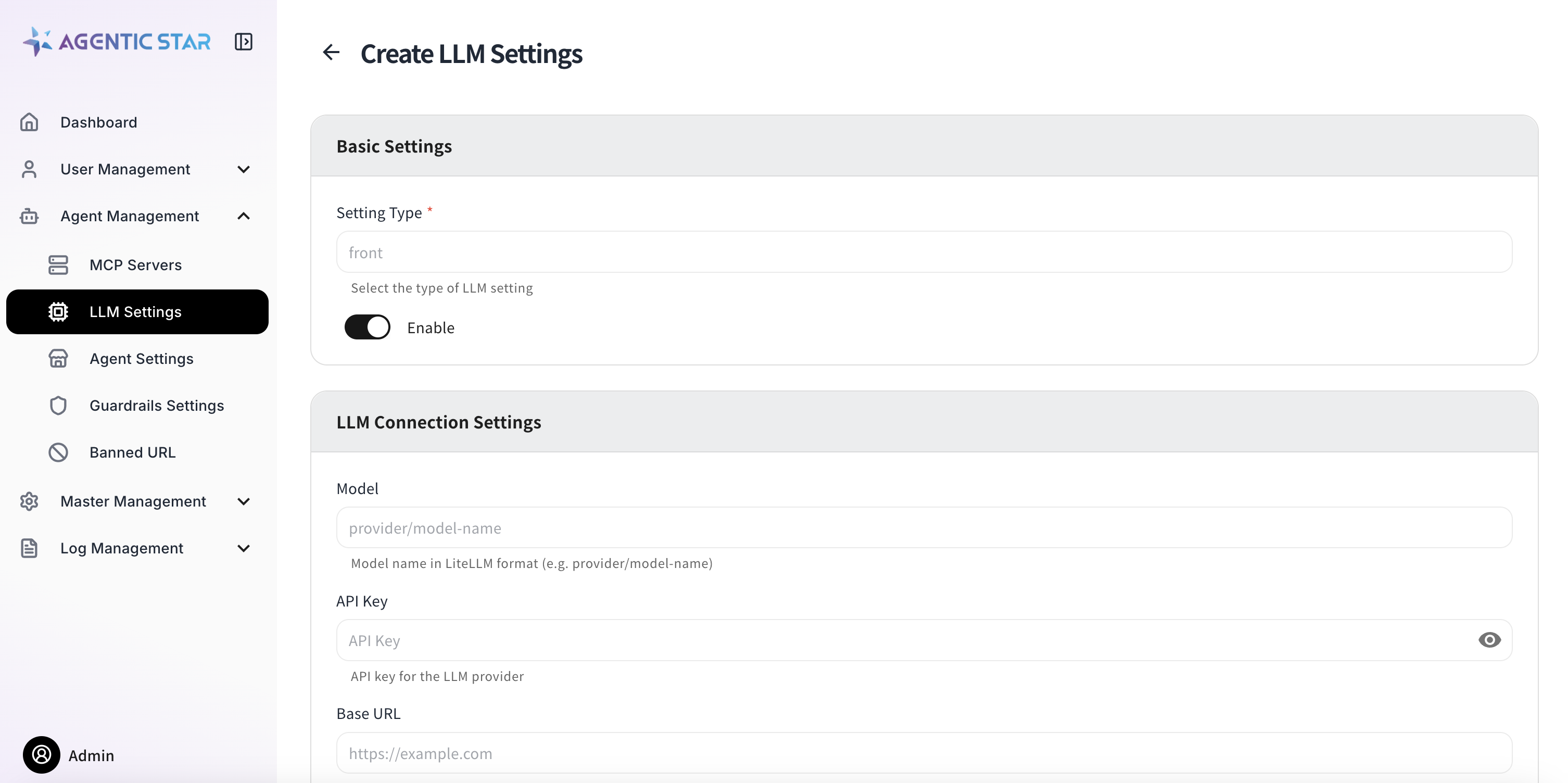
| Setting | Description |
|---|---|
| Agent Type | The agent type the setting applies to |
| Model | Model name (LiteLLM format: provider/model-name) |
| API Key | API key for the LLM provider |
| Base URL | Endpoint URL for the LLM provider |
| API Version | API version (YYYY-MM-DD format) |
| Additional Settings | Extra parameters in JSON format |
Sensitive values such as API keys are displayed as ******** after they are saved. If you do not change them, the existing values are retained.
Marketplace AI Agents
Register custom agents to make them available on the platform.
Basic Information
| Setting | Description |
|---|---|
| Agent ID | Agent identifier (lowercase alphanumeric and hyphens, up to 63 characters) |
| Display Name | Display name of the agent |
| Description | Description of the agent |
| Icon | Upload an icon image (PNG / JPEG, 512 KB or less) |
| Tags | Tags for classification (comma-separated) |
Docker Image
| Setting | Description |
|---|---|
| Registry | Container registry URL (e.g., myacr.azurecr.io) |
| Image Name | Image name (e.g., my-org/rag-agent) |
| Image Tag | Image tag (default: latest) |
| Image Pull Secret | Authentication secret for a private registry |
Check image
To see whether this cluster can pull the image you entered, use "Check image" in the Docker image section. It pulls the image from the registry with the selected Secret, in the same namespace and with the same security settings as when the agent runs, and checks that the container gets as far as startup preparation. It does not run the agent's code, so it does not check whether the agent's processing works. The result is not saved.
| Result | What to do |
|---|---|
| The image was pulled and a digest is shown | You can use the displayed digest as the certified digest when you use the agent in workflows (certification information) |
| The image was pulled, but the digest could not be obtained | Pass the "Checked reference" shown in the result to docker buildx imagetools inspect to look up the digest |
| The image was not found | Check the registry, image name, and tag (the certified digest when you checked with a digest) |
| The registry refused the request | For a private registry, check the Secret's credentials and that the Secret is selected |
| The image was pulled but cannot start (it may run as root, or USER may not be a numeric UID) | Set USER in the Dockerfile to a numeric non-root UID (for example USER 1000) (Deploy Guide — Step 1) |
| Startup preparation stopped | Check the image's USER and the security settings |
| The image could not be pulled | Check that this cluster can reach the registry |
| The pull did not finish in time | If the image is large, check again. If it keeps happening, check the route to the registry |
| The image reference is not in a valid format | Check how the registry, image name, and tag (or digest) are written |
| Could not connect to the check service, another check has not finished, or the check result is no longer available | Check again after a while |
Resources
| Setting | Description |
|---|---|
| CPU Request / Limit | CPU allocation (e.g., 500m, 2000m) |
| Memory Request / Limit | Memory allocation (e.g., 512Mi, 4Gi) |
Storage
Enable this when persistent storage is required.
| Setting | Description |
|---|---|
| Storage Size | Capacity (e.g., 10Gi) |
| Mount Path | Mount path inside the container (absolute path) |
| Storage Class | Kubernetes storage class |
| Access Mode | Access mode |
Status
| Setting | Description |
|---|---|
| Enabled | Toggle the agent on or off |
Environment Variables
You can set custom environment variables. The following reserved variables are injected automatically by the platform and do not need to be configured manually (registering a variable with the same name results in an error).
Always injected
EXECUTION_IDCONVERSATION_IDUSER_IDAGENT_IDREQUEST_SOURCE
Injected conditionally
MESSAGE_IDUSER_ORGANIZATION_IDUSER_ORGANIZATION_LABELUSER_JOB_ROLEUSER_JOB_LABELUSER_BIOUSER_LANGUAGEPROJECT_ID(when the agent runs on a step of a project's cycle)ASTER_NOTIFY_TOKEN(the notify token, issued per execution)
Custom environment variables can be marked as secret (with masked display) and as required.
Use in workflows
This setting lets the agent be placed in the steps of a project workflow. When you turn it on, you register the contract, which decides the settings, files, outputs and connections the agent receives, together with the certification information. If you save with it off, the registered contract is deleted and the agent can no longer be used in workflows.
You do not need this setting if you use the agent only in cycle steps or in conversations.
| Setting | Description |
|---|---|
| Readiness | Certified / Not certified (unavailable for workflows) / Not supported |
| Effect mode | Read only / Idempotent write / Non-idempotent write. Only Read only and Idempotent write runs can be retried automatically after a failure. Agents that write externally must choose the value that matches their writes |
| Execution timeout (seconds) | Defaults to 900. 0 means no limit (up to 86,400 seconds = 24 hours) |
| SDK version / Adapter version / Test results reference / Certified image digest / Supported run rules | Certification information (see below) |
| Connection slots | Slots for the connections the agent uses. Set the slot name, the allowed connections (MCP servers or A2A agents with OAuth configured) and whether the slot is required |
| Contract (JSON) | Edit the settings (parameters_schema), default values (defaults), environment variable bindings (env_bindings), files (files) and outputs (outputs) |
| Load from YAML | Load a contract written in YAML |
When you turn it on, a contract template is filled in. After editing, check it with Validate and format before saving. For how to write the contract, see the Workflow Guide.
Certification information
Only agents that have all five of the following can be placed in project steps. If even one is missing, the project screen shows the agent as "Unavailable (not certified)" and it cannot be placed.
| Item | Contract key | Value |
|---|---|---|
| SDK version | certification.sdk_version | SDK version of the tested image |
| Adapter version | certification.adapter_version | Version of the tested adapter |
| Test results reference | certification.tests_ref | Location or ID where the test results can be found |
| Certified image digest | certification.image_digest | sha256: followed by 64 hexadecimal digits. Runs use the image with this digest |
| Supported run rules | certification.supported_policies | The basic rules the agent supports. Choose the ones confirmed in testing, from Open, Guarded and Strict |
When all five are present, the readiness becomes "Certified". When items are missing, the readiness shows which ones.
If the basic rule of the project's execution rules is not in "Supported run rules", the agent does not start in that project (Execution Rules and Traffic Guide).
Certify again after you update the image. Runs use the image with the certified digest, so replacing only the tag does not make runs use the new image. You can look up the digest with, for example, docker buildx imagetools inspect <registry>/<image>:<tag>.
When "Use in workflows" is on, "Use as certified digest" in the result of "Check image" puts the digest of the pulled image into the certified digest field. "Check with this digest" next to the certified digest field checks the image with that digest in the same way. If the image for the tag differs from the certified digest, a message says so.
Additional Settings (JSON)
Specify agent-specific extra parameters in JSON format.
ACR Secret Management
When using a private Azure Container Registry, you can have an authentication secret created automatically from a username and password.
AI Agent Restrictions
Guardrails Settings
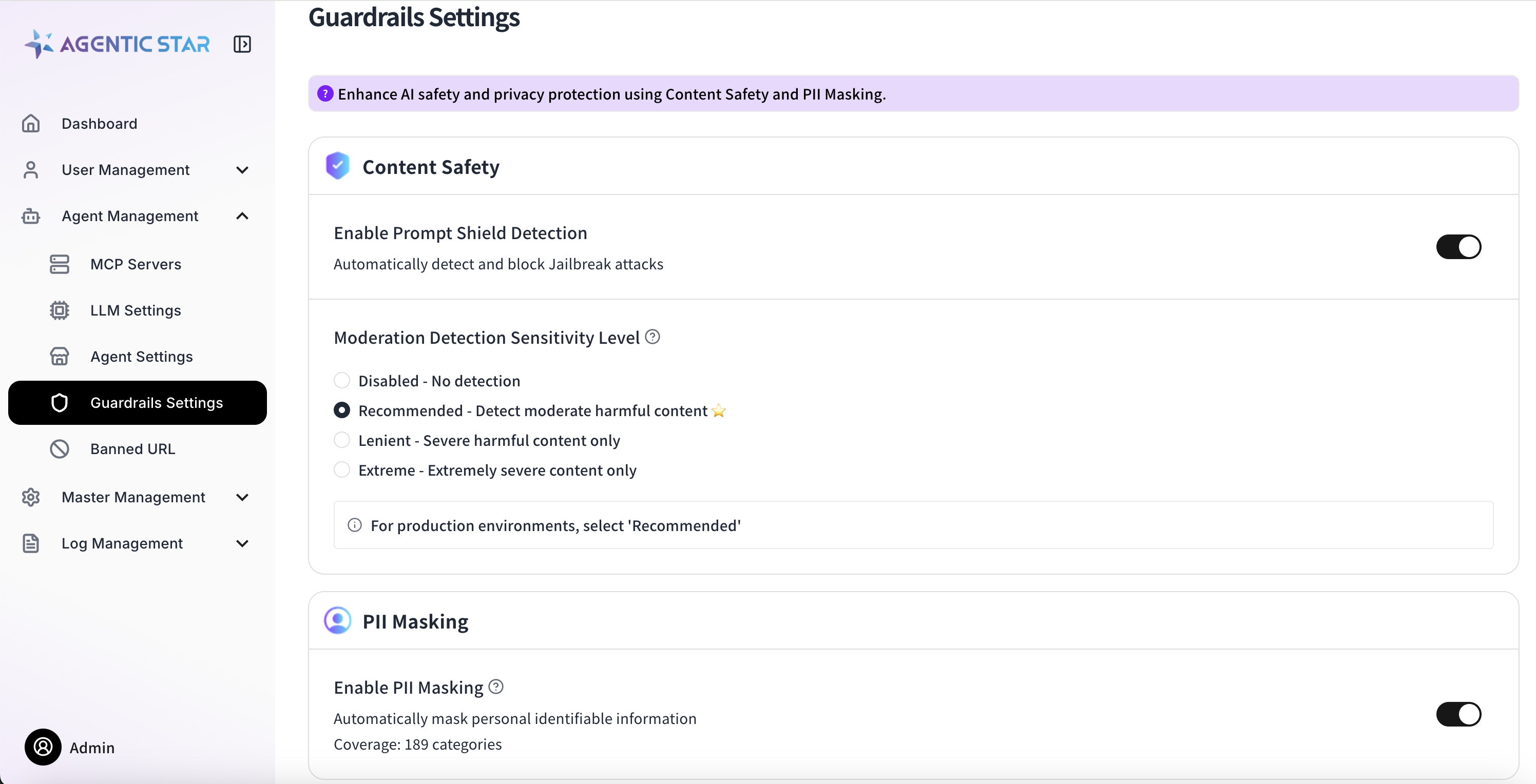
Configure content safety and personal information protection for AI outputs.
Content Safety
Prompt Shield Detection
Detects and blocks jailbreak attacks. Can be turned on or off.
Moderation Detection
Sets the detection level for harmful content.
| Level | Description |
|---|---|
| 0 | Disabled |
| 2 | Recommended (detect moderately harmful content) |
| 4 | Lenient (detect only severe content) |
| 6 | Minimum (detect only extremely severe content) |
Detection categories: violence, sexual content, hate speech, self-harm.
PII Masking
Automatically detects and masks personally identifiable information (PII). Up to 189 categories are supported (the count varies by cloud provider).
Examples of detection targets:
- Identifying info (phone numbers, email addresses, My Number, etc.)
- Financial info (credit card numbers, account numbers, etc.)
- Medical info (insurance numbers, medical records, etc.)
- Location info (addresses, GPS coordinates, etc.)
- Credentials (passwords, API keys, tokens, etc.)
Backend per Cloud Provider
| Provider | Backend | Supported Languages |
|---|---|---|
| Azure | Azure AI Language - PII Detection | Multilingual (including Japanese) |
| AWS | Bedrock Guardrails sensitiveInformationPolicy | Multilingual (including Japanese) |
| GCP | Cloud DLP | Multilingual (including Japanese) |
On AWS, we recommend handling ContentSafety (content moderation / prompt shield) and PII detection in a single Bedrock Guardrail. Both are evaluated with one apply_guardrail API call, so the only IAM permission required is bedrock:ApplyGuardrail.
Banned URL
Manage URLs that agents are forbidden to access.
Restriction Granularity
| Feature | Granularity | Description |
|---|---|---|
| Base feature (shipped by default) | Domain | Outbound traffic from the Pod is checked by ExtAuth Service (Envoy sidecar-based authorization). Because HTTPS hides the path inside the TLS tunnel, in practice this acts as a domain (+ port) level restriction. |
| Extension (optional implementation) | URL (path) | If the agent itself uses the SDK's ConfigAccess.get_banned_urls() and inspects URL strings inside its tools, path-level restriction becomes possible. |
Both features share the same “Banned URL” configuration (the banned_urls table), so registration in the admin console is unified. For how to implement the extension, see ConfigAccess.get_banned_urls() in the SDK Reference.
Announcements and Notifications
Announcements
Create and manage announcements shown to end users. You can set a title and body (Markdown), priority, and enabled / disabled state.
Notification Settings
The “Notification Settings” screen switches between the “Notification Settings” and “Mail Provider Settings” tabs at the top.
“Notification Settings” tab
Configure whether notification emails are sent to end users. Task-completion mail, follow-up mail, and Weekly mail can be toggled individually.
“Mail Provider Settings” tab
Configure the email provider used to send notification emails. Review request and review-overdue emails for projects are also sent with the sending method and sender configured here. If it is not configured, these emails are not sent.
Basic Settings
Toggle the email feature on or off.
SMTP Settings
| Setting | Description | Notes |
|---|---|---|
| Host | SMTP server hostname | Required (e.g., smtp.example.com) |
| Port | SMTP server port | Required (1–65535, default: 587) |
| Encryption | Encryption for the connection | None / SSL / TLS (TLS recommended) |
| Authentication | Authentication method | None / LOGIN / PLAIN / CRAM-MD5 |
| Username | SMTP authentication username | Required |
| Password | SMTP authentication password | Required |
| From Address | Sender email address | Required |
| Sender display name | Name shown as the email sender | Optional |
Records and Audit
Operation Logs
The “Operation Logs” screen switches between the “Audit Logs”, “Operation audit logs” and “User action audit” tabs at the top.
“Audit Logs” tab
Review the history of operations performed in the admin console — who changed what and when.
AI Agent LLM Usage
Review the history of LLM usage. Token consumption and request content can be traced.
User Evaluations
Review user reports.
Outbound Communication Records
Review the outbound traffic agents made: the destination, whether it was allowed or denied, and why it was stopped.
Version Management
Check the platform's current version and upgrade to the latest available version. Versions must be upgraded one at a time, in order.